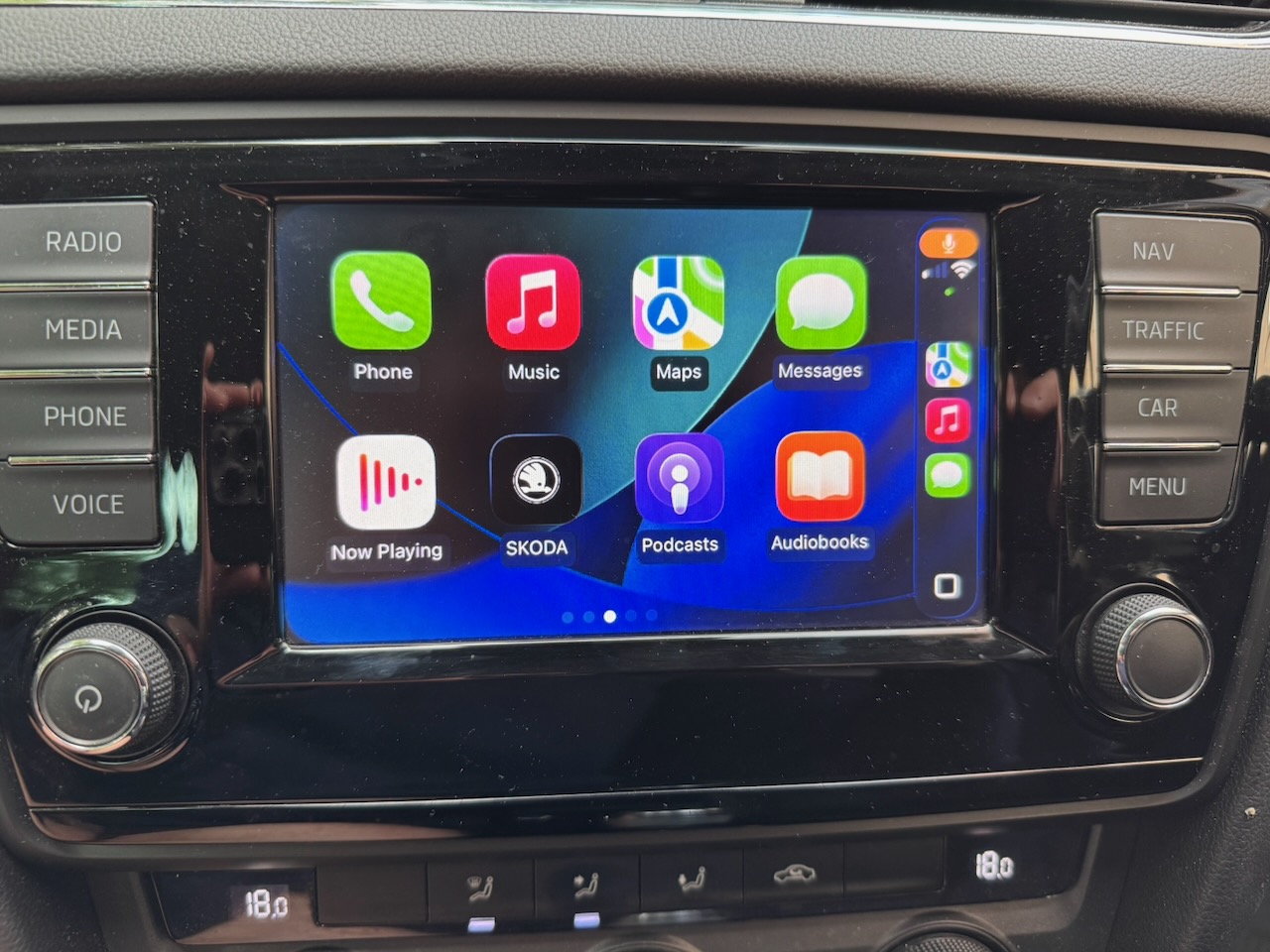
[AI assisted car hacking glee intensifies]
I recently got a VCDS cable to troubleshoot some issues with Octavia’s wheel speed sensors. I then discovered that on a 2015 car it’s possible to hack all of the car’s controllers including the entertainment system. (sadly from 2020 onwards VAG began to lock things down with an encrypted protocol called SFD)
I took the VCDS scan of the entertainment system controller and pasted it into Google Gemini, which recommended the following steps.
If you want to do this, I don’t recommend you follow the steps verbatim. There are so many different versions of head unit hardware and firmware out there. Paste your own VCDS scan into Gemini and ask it what to do to enable CarPlay. 🙂
So this description is intentionally (?) a bit vague and as much to remind myself what to do if I ever need to repeat the process…
The first step was to upgrade the head unit firmware. I don’t think this is even compulsory, but I wanted to make sure I had the latest one, as my car dates from just before VAG officially launched CarPlay support.
Download the latest firmware from mibsolution.one. Finding the correct firmware file was tricky, I went by Gemini’s recommended file name and eventually found a similar name in a completely different folder to what it said.
Note that there are version numbers beginning 02xx, 03xx, 04xx. This number is actually a hardware tier. My unit needs the 02xx FW. 3xx and 4xx are not compatible.
Unzip it to a fresh FAT32 formatted SD card.
Turn the ignition on. Put the car on a battery charger, or if you don’t have a charger, leave the engine running. And last but not least open the bonnet. In MY2015+ cars, write access to some of the controllers is restricted when it’s closed.
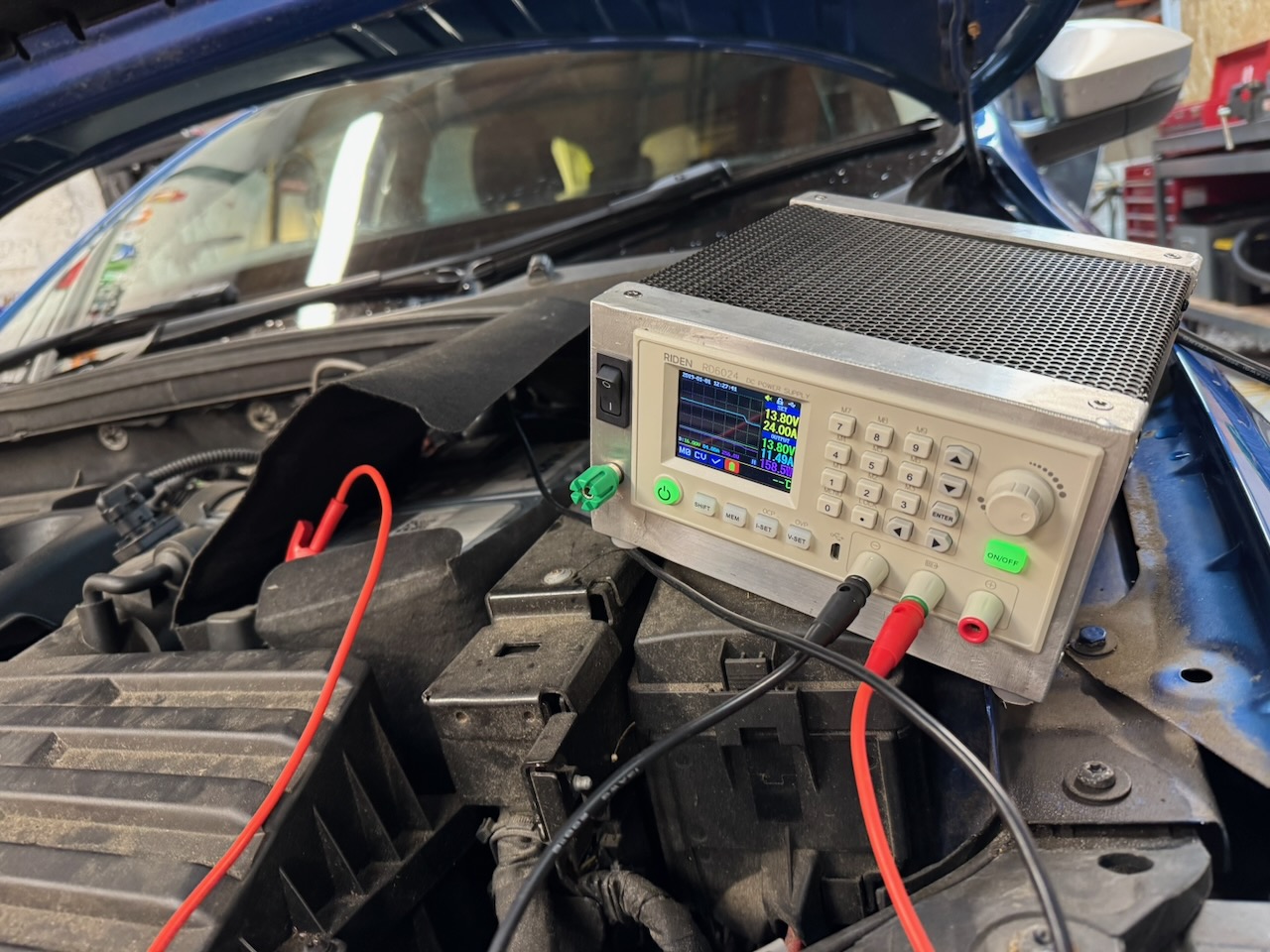
Insert the SD card in SD slot 1 of the head unit and hold down the MENU button until it enters service mode. There is a menu option for firmware upgrade, and the upgrade files on the SD card should be detected and offered as an upgrade. It performs some validation, so wouldn’t let you install the wrong firmware.
Then you get a screen that shows what subsystems it is proposing to upgrade, just hit Start here.
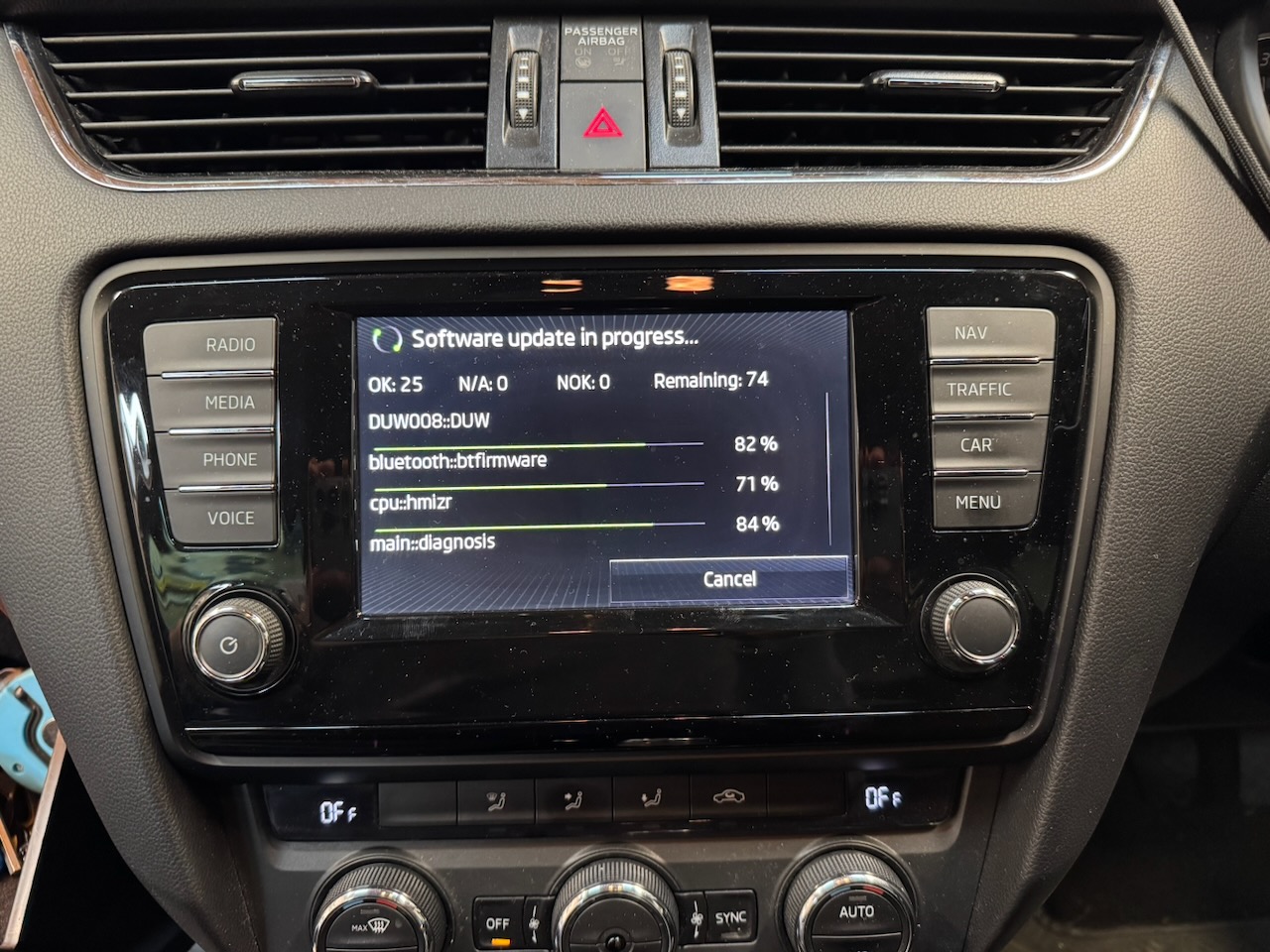
You should see various FW upgrade progress bars. Wait about half an hour. (This is why we made sure the car battery was being charged. The head unit would be bricked if it went flat.)
When it is done there is a screen with some blurb about diagnostic adapter which I just ignored. Reboot the head unit by holding the power button down.
Download the MIB Toolbox zip file from the Releases section on https://github.com/olli991/mib-std2-pq-zr-toolbox
(This is the version for my head unit. Olli has other toolboxes)
Reformat the SD card and copy the files from the zip to the root directory.
There was some thing here about the toolbox/gem/cpu folder having to be copied to the root directory of the SD card, overwriting whatever was in /cpu. I first tried without this, and the patch wouldn’t run.
Now insert the SD card with MIB Toolbox and follow the firmware upgrade instructions again. MIB Toolbox appears as a firmware upgrade that installs a lot quicker than the actual FW.
You also have to use VCDS to enable developer mode aka the “green engineering menu”. You have to enter a security code first. Then reboot the head unit again.
Now hold down the Menu button to enter service mode, and keep holding it down even longer. (note that if you do this straight after a fresh reboot, you just get stuck at a dialog that says “Starting service mode”, in which case you have to go into service mode, back out, and then try holding down the button again.)
You should eventually enter another menu with an option for “Green engineering menu”. Select this, and in the green engineering menu there should be an option for mibstd2_toolbox.
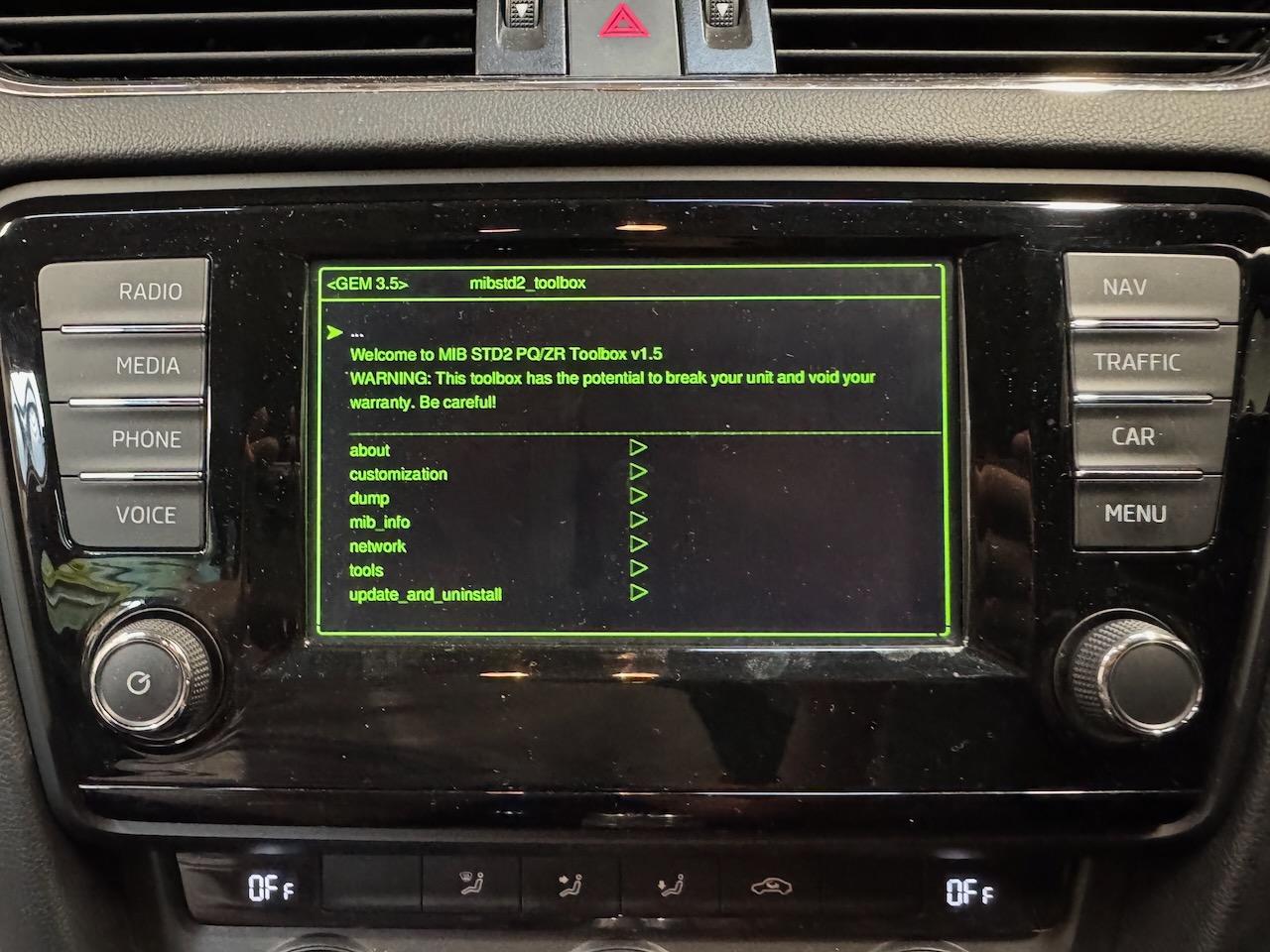
Older readers may be getting flashbacks to Colossal Cave Adventure at this point. But keep going. In one of these twisty little passages there is a menu item with a name like “Patch SWAP and generate EL”. This is the droid we are looking for. It will crack all of the options that were supposed to be paid upgrades, like the sport and off-road information displays, and “SmartLink”: the Android Auto and CarPlay functionality. Select this menu option and it should print out some progress messages and eventually ask you to restart the unit.
You are not done yet, you have to go into VCDS again and enable the Google_GAL and Apple_DIO adaptations in the entertainment system controller, and reboot again.
Finally, Gemini said I needed to replace the USB socket in my centre console with a newer version to enable CarPlay. But this is BS. It worked with no changes to the hardware.